App guide
The App provides a visual interface for choosing processes, entering inputs,
submitting jobs, and inspecting their status. It uses the configuration saved
by sen4cap-client configure and credentials saved by sen4cap-client login;
see configuration and authentication.
Open in a browser
The simplest way to launch the App is from a terminal:
sen4cap-client show-app
Keep the terminal open while using the App. Press Ctrl+C to stop it.
Choose a process and enter inputs
Select a process from the process list and review its description, inputs, and
outputs. This guide uses the same process 218 as the API guide.
Your service may offer different processes or input fields.
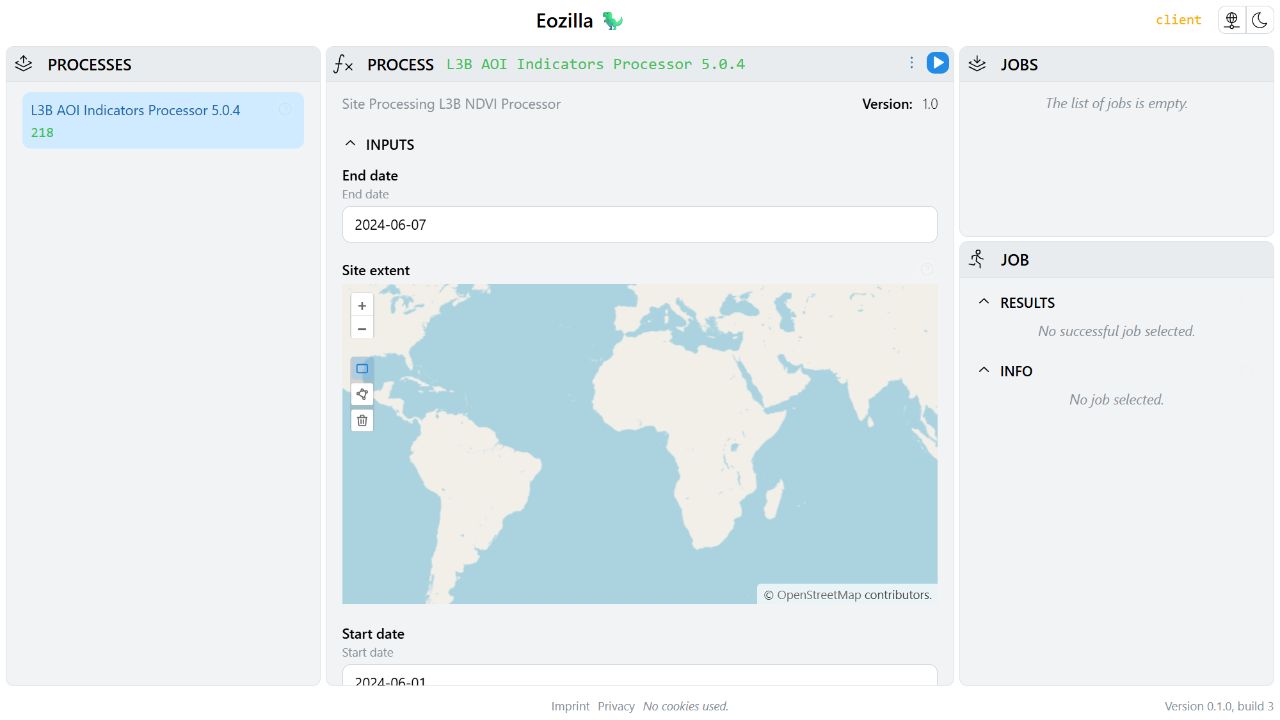
Historical example form from Cuiman 0.2.0.dev1. The current app's appearance, available processes, and inputs can differ; see the image provenance.
Enter the date range and area of interest, select the desired product and outputs, then submit the process request. Monitor the resulting job in the App's jobs view. Results become available after processing succeeds; failed jobs should be inspected for error details.
For raster results, use the API guide to open the desired STAC asset in Python.
Launch from Python
The App example returns both the client and the App so that you can interact with them:
from sen4cap_client.api import create_client


def open_app(display="browser"):
    client = create_client()
    try:
        app = client.show_app(display=display, height=640)
    except Exception:
        client.close()
        raise
    return client, app
Run the complete script from the repository root to open a browser and keep the App running until Ctrl+C:
python examples/guides/app.py
Use the App in a notebook
The same helper can embed the App in Jupyter. With the repository root as the
notebook's working directory, use the following example, or run it with
%run -i examples/guides/notebook_app.py:
from examples.guides.app import open_app, set_dates_and_area  # noqa: F401

if __name__ == "__main__":
    client, app = open_app(display="notebook")
Keep client and app available for subsequent cells. The
original App notebook
also remains available.
Update inputs from Python
After opening process 218 in the App, call set_dates_and_area(app) to change
its dates and area of interest through the shared request state:
def set_dates_and_area(app, process_id="218"):
    request = app.process_requests[process_id]
    request.inputs["startdate"] = "2024-06-03"
    request.inputs["enddate"] = "2024-06-11"
    request.inputs["geom"] = (
        "POLYGON ((9.66 53.75,10.38 53.75,10.38 53.35,9.66 53.35,9.66 53.75))"
    )
The input IDs are specific to this process. Use the IDs from your own process description when adapting the example. Changing the request updates the form; it does not submit a job. Review the form before executing it.
When finished with an App opened from a notebook, stop its server and close the client:
app.serve_result.stop()
client.close()